Step by step guide for getting up and running with least privileged msgraph
A step by step guide for getting up and running with least privileged msgraph
Intro
So you are ready to begin seeing how many permissions you can remove from your applications, Great!
This step-by-step guide that i believe some people need in order to get started with my module but to be honest i have no clue is this is the issue for the low adoption rate that i am seeing. So if you are brave and have an opinion or feedback that you think is would help more people adopt my module please reach out to me i am on discord or linkedin and my messages are open.
LinkedIn: Morten Mynster
Discord: Morten (Mynster)
Get up and running
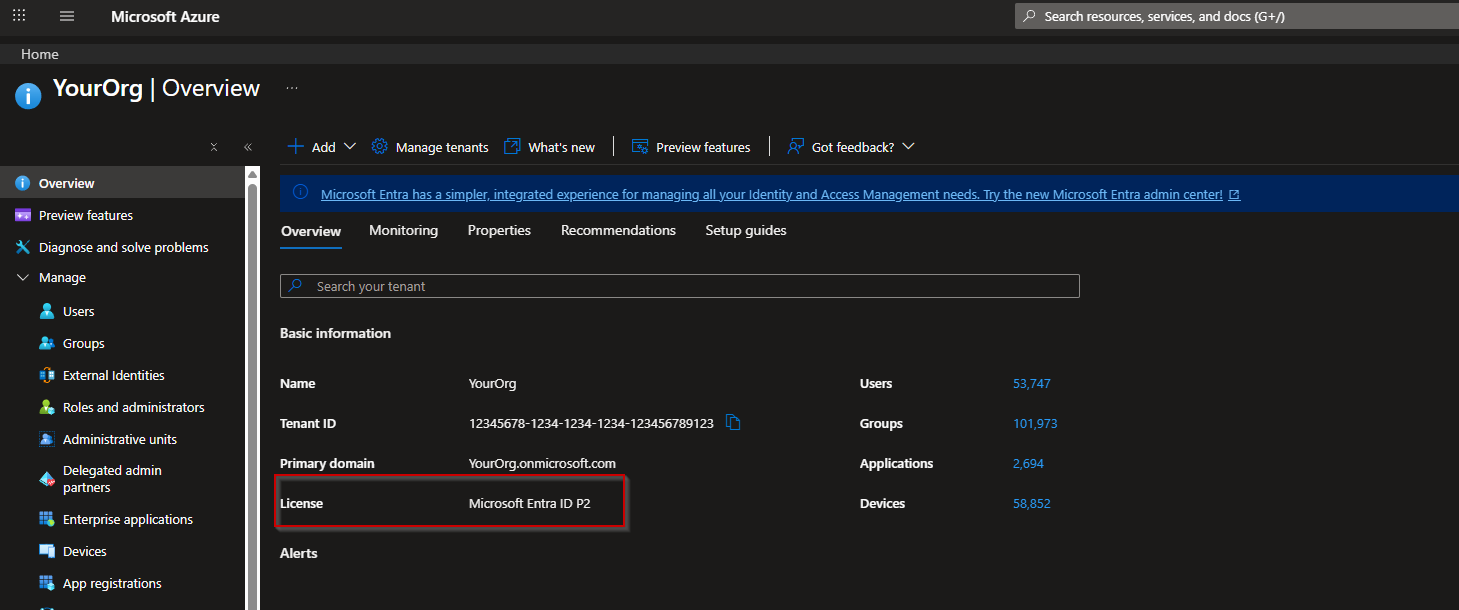
First up a prerequisite for you to be able to set this up is to have either Entra ID P1 or P2 license. The easiest way to see this is by going to the Entra Overview page.
Here you should be able to see which license you have for Entra
Now that is out of the way lets get started.
Setup a Log Analytics workspace
First you need a subscription and if you have been using Azure i will gurantee you already have one that you have access to and can utilize.
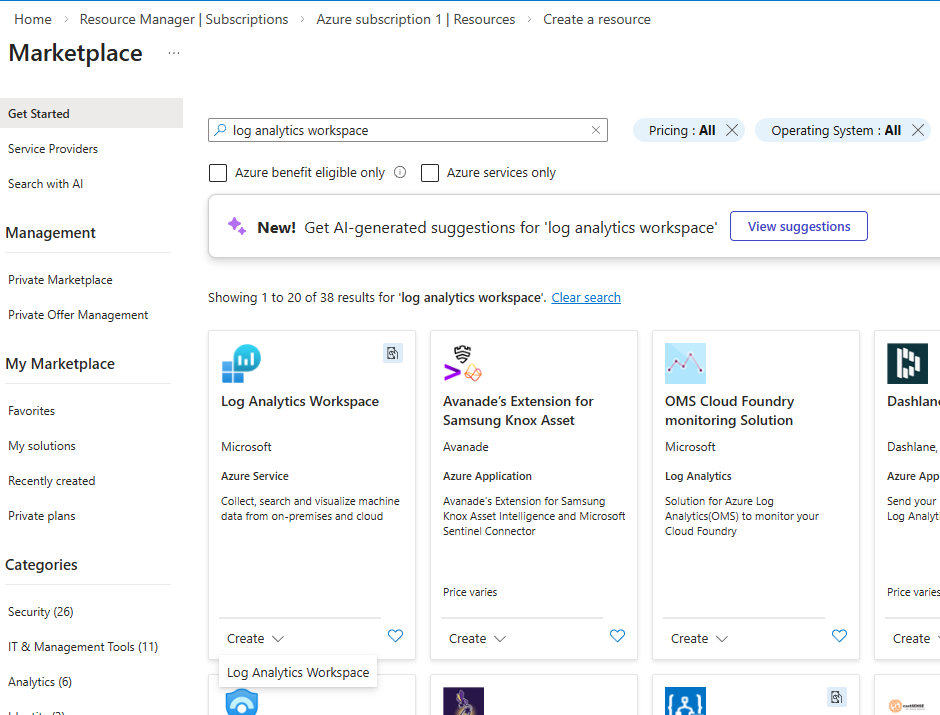
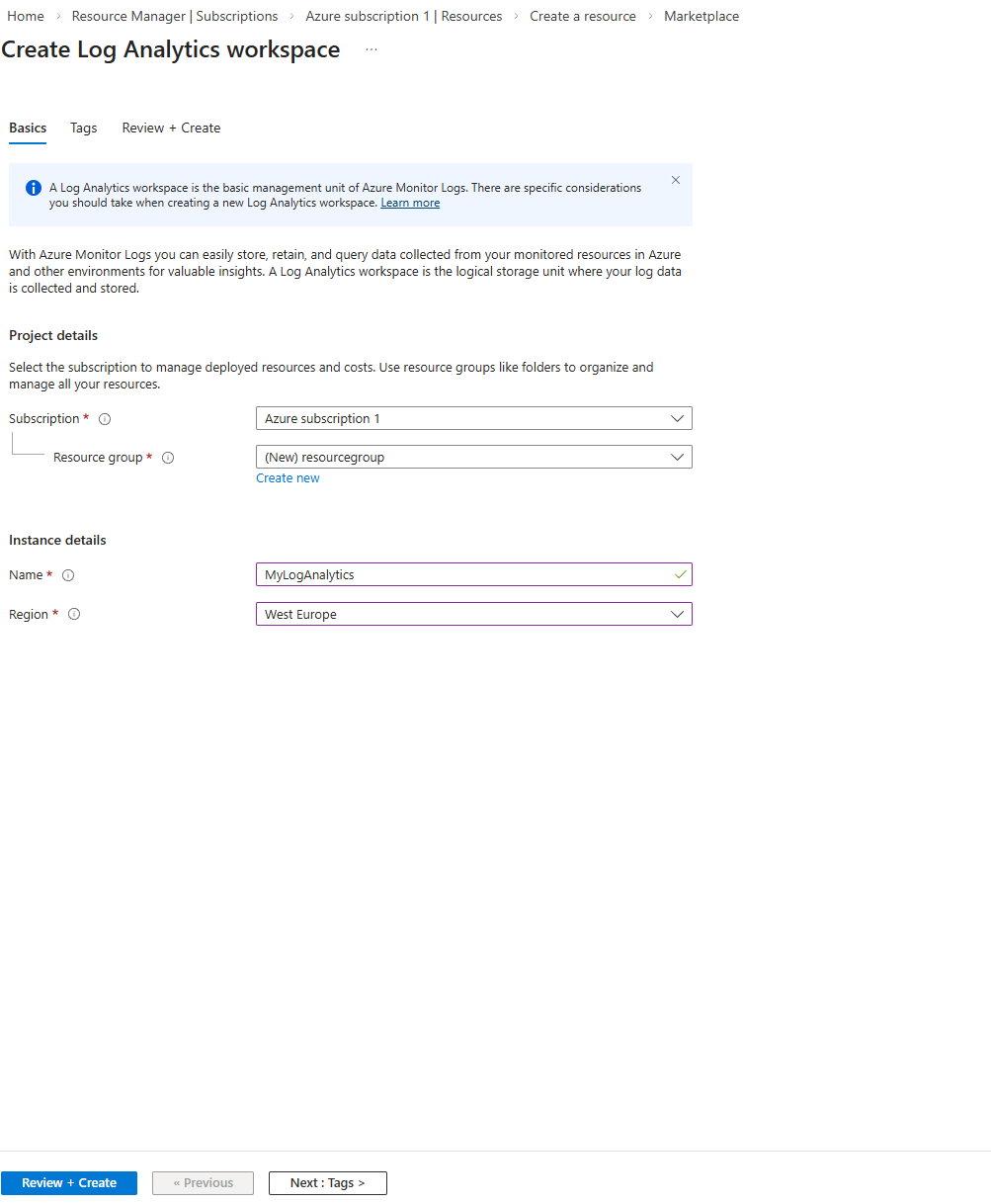
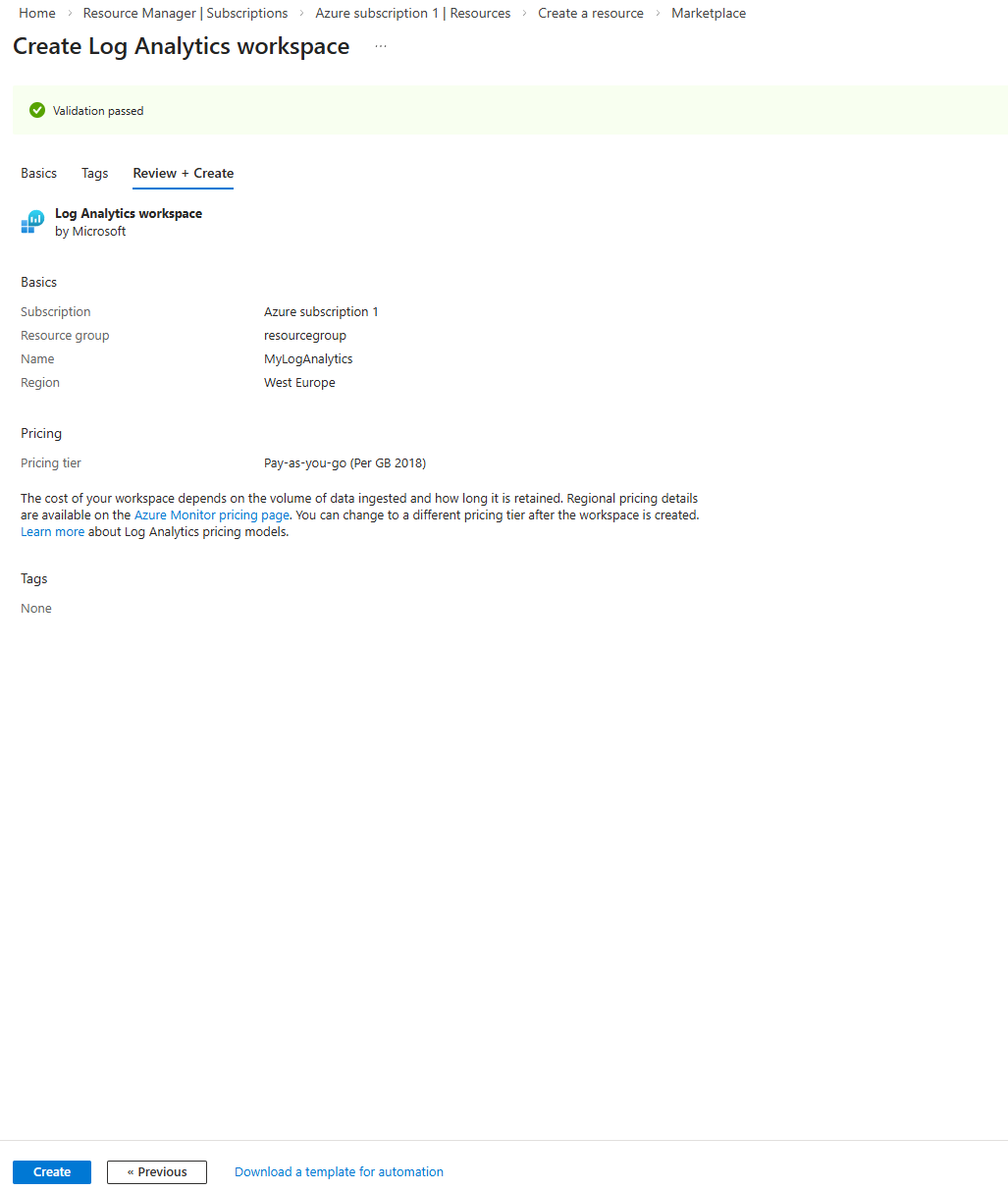
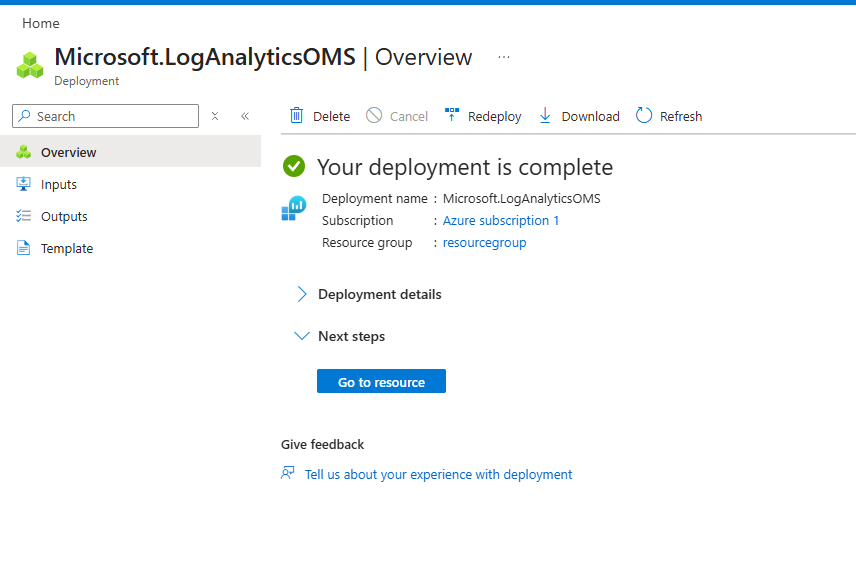
Easy peacy right!
Setup Entra diagnostics for Microsoft Graph Activity Logs
Now the log analytics workspace is created we need to enable the diagnostics logs so go to Entra and then Diagnostic settings
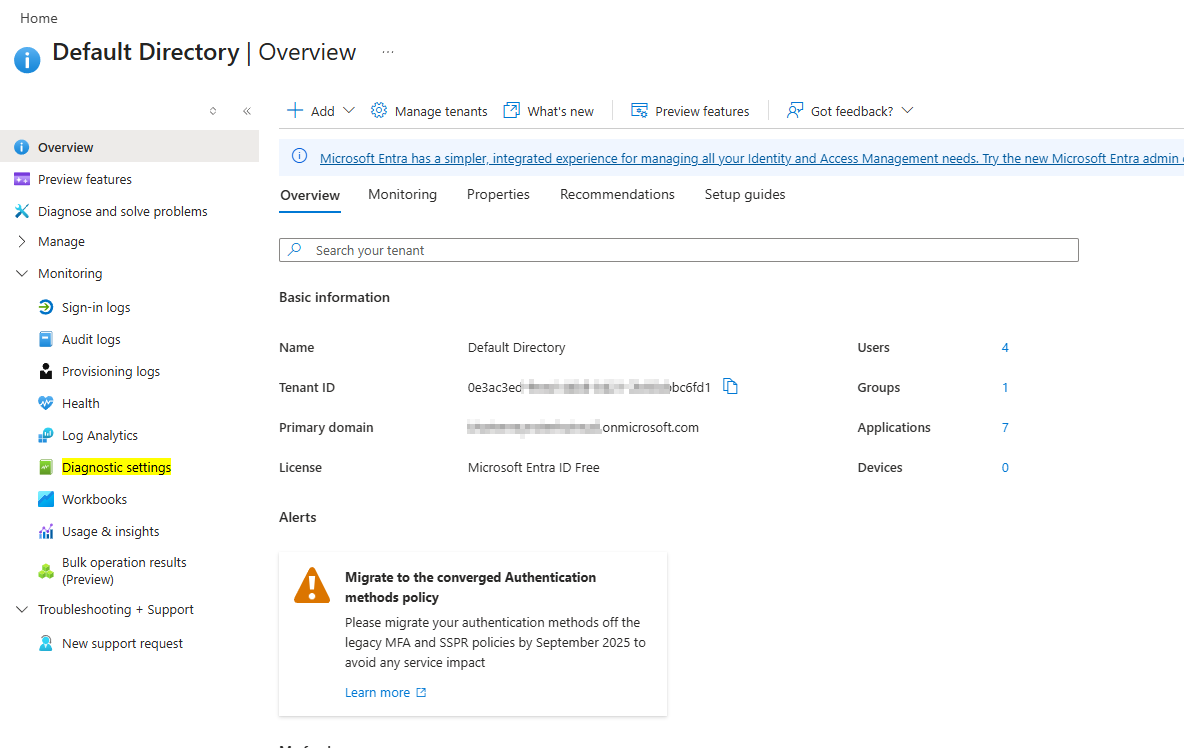
Click Add diagnostic setting
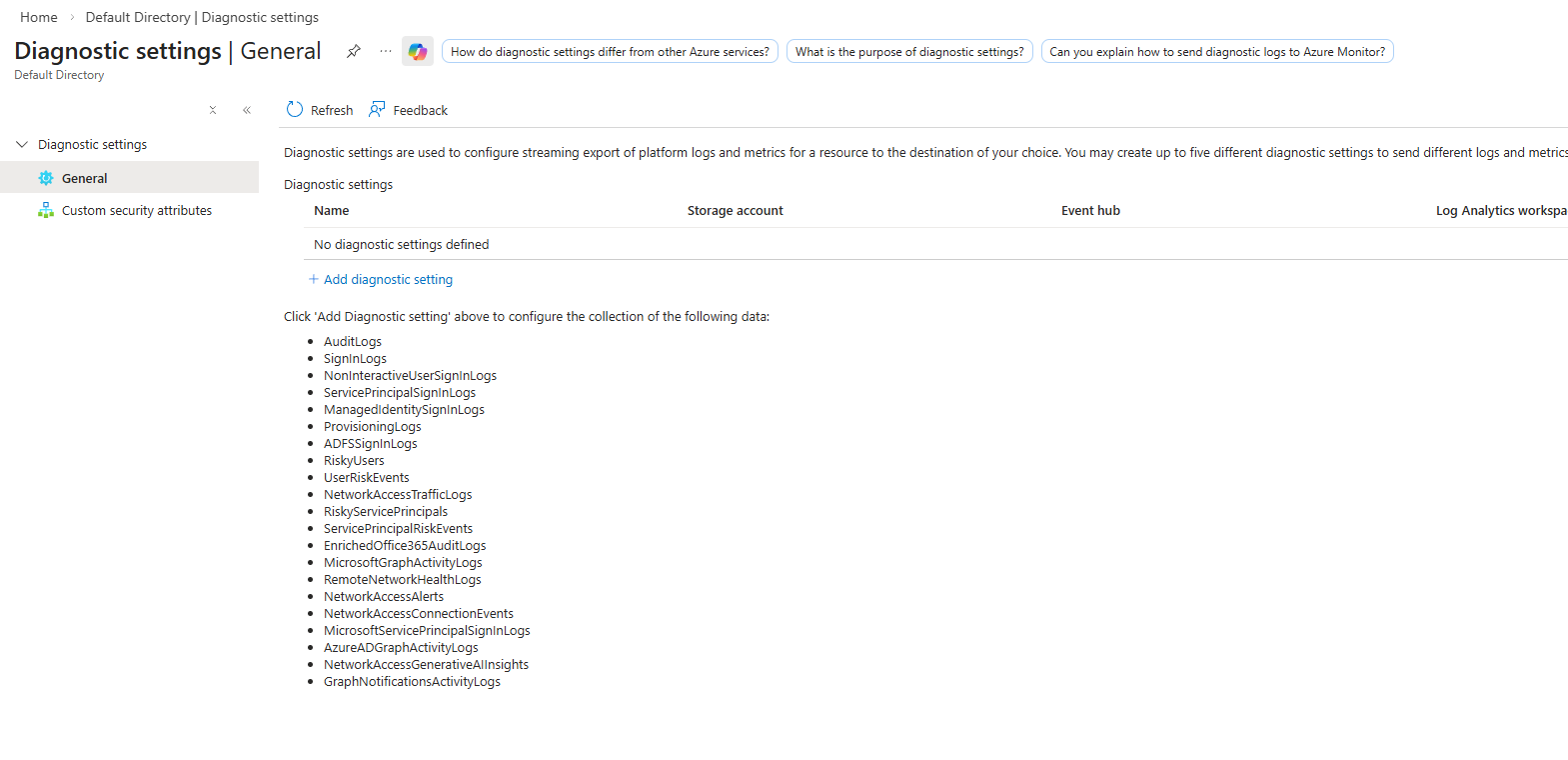
Now give the diagnostic setting a name like “MicrosoftGraphActivityLogs” Enable MicrosoftGraphActivityLogs and send to log analytics workspace and select you subscription and log analytics workspace
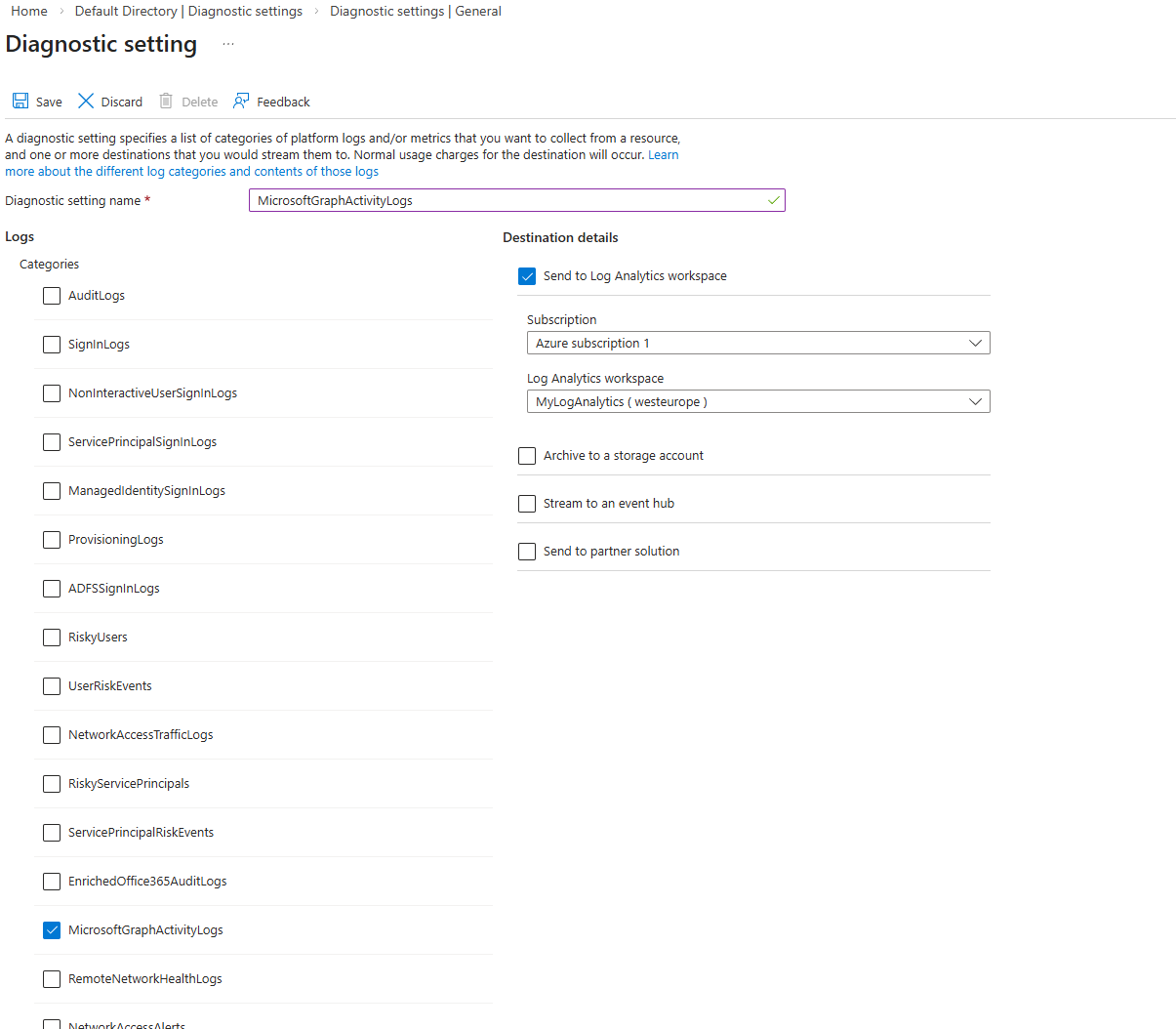
Done deal now you have logs for Microsoft graph activity. Note it will take a bit to populate with data
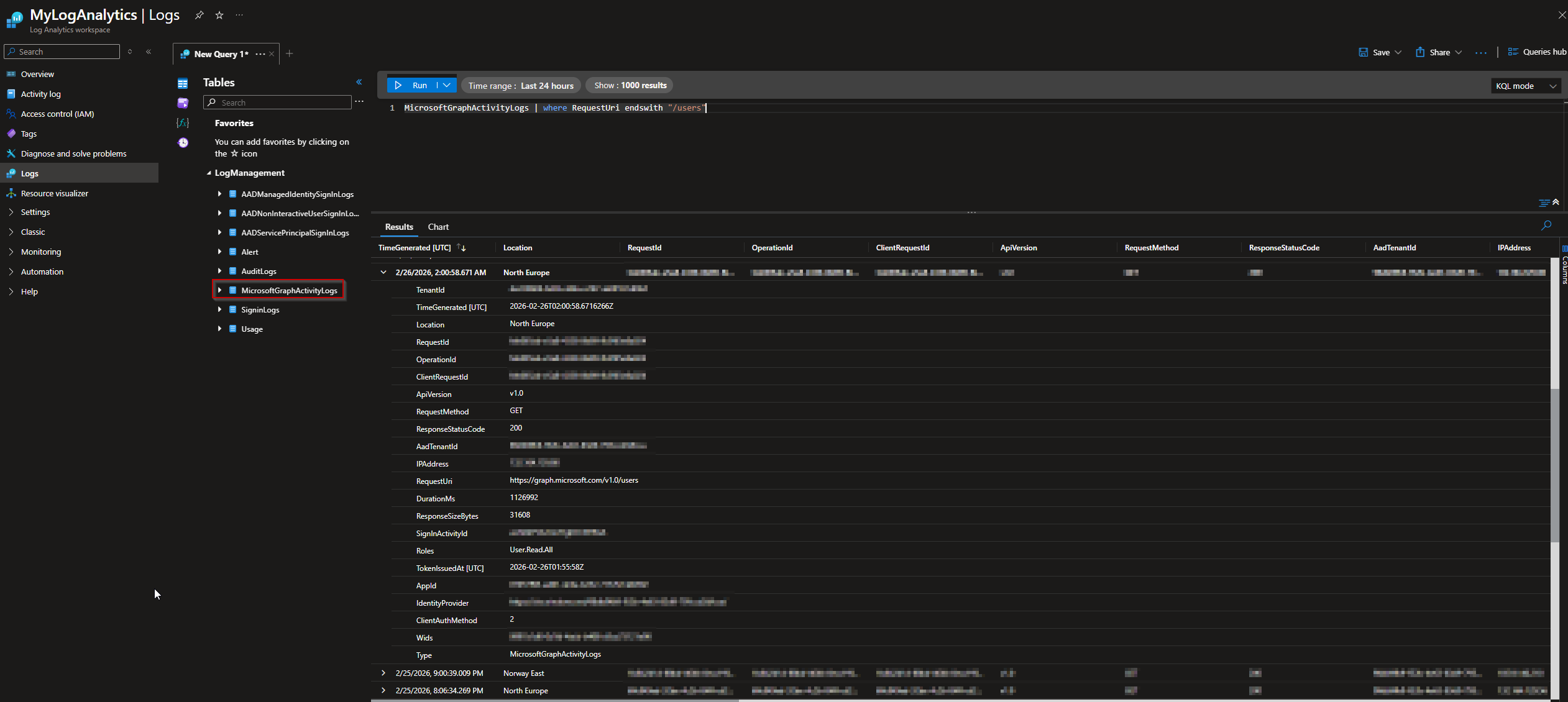
You can go to log analytics and try and request some data from the log analytics workspace like the below example
Example query:
1
MicrosoftGraphActivityLogs | where RequestUri endswith "/users"
Setup an automation to gather the report on a regular basis
Create your app registration 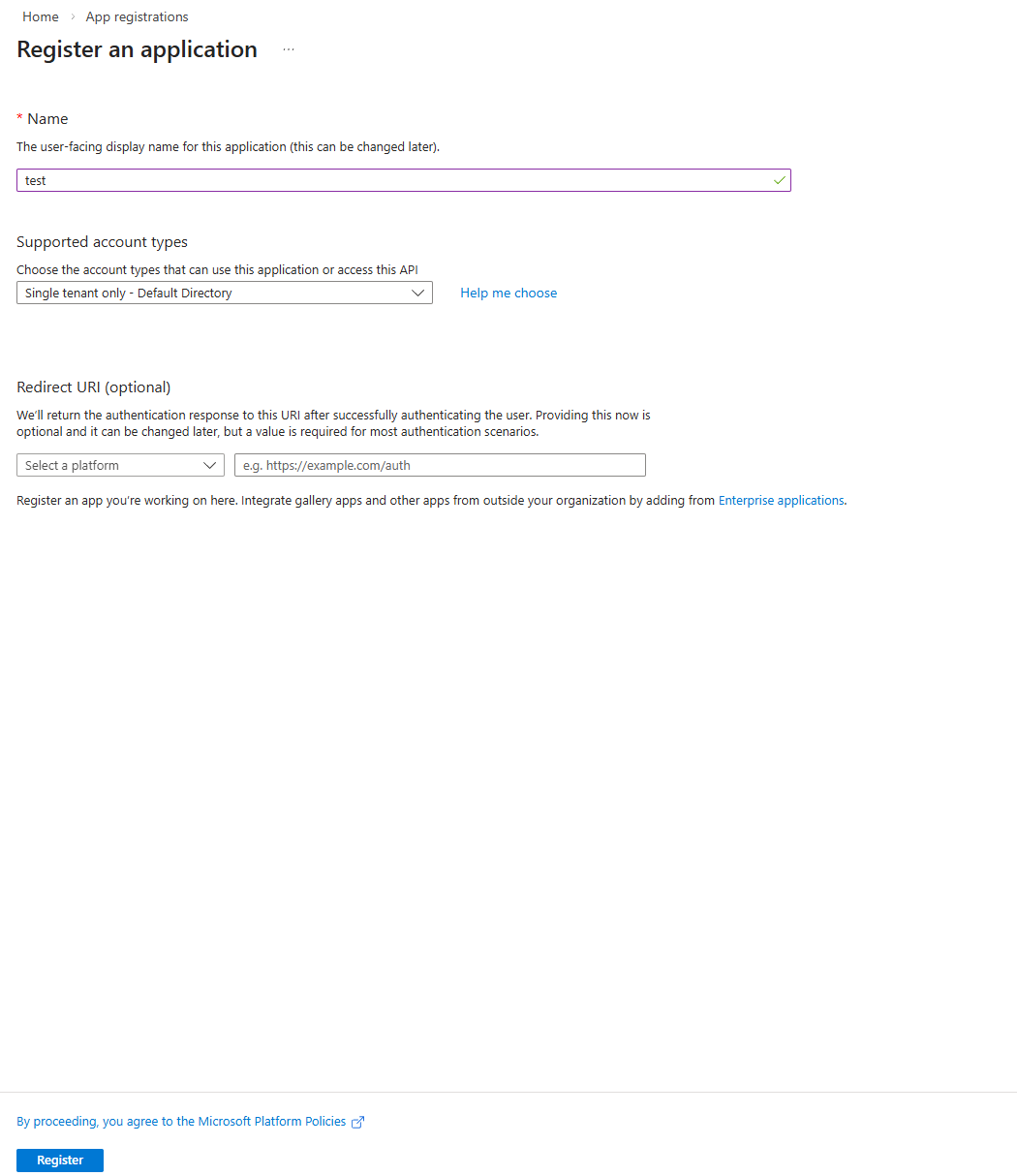
Create some credentials to use for authentication 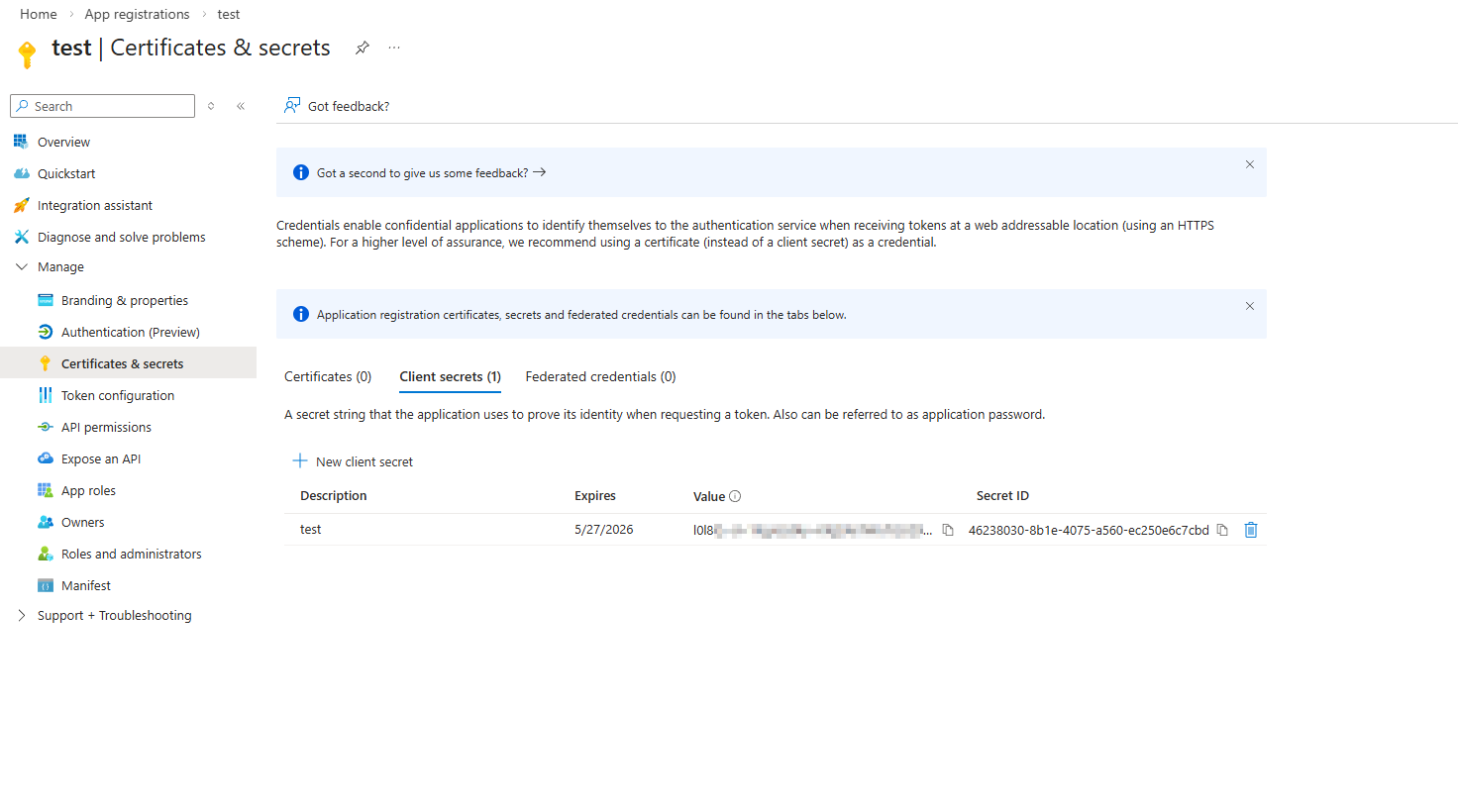
Now give the role “Log Analytics Reader” to the service principal on the log analytics workspace 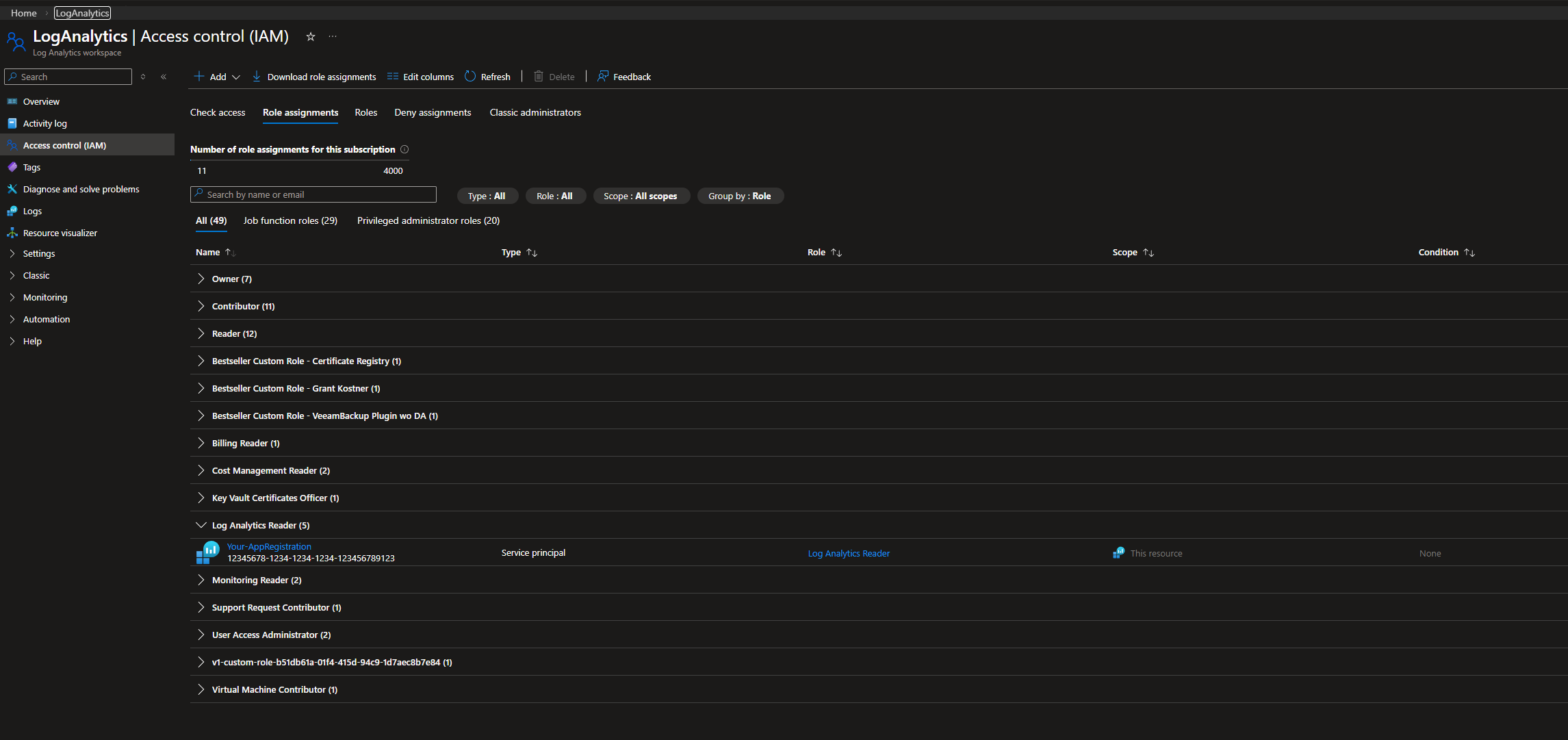
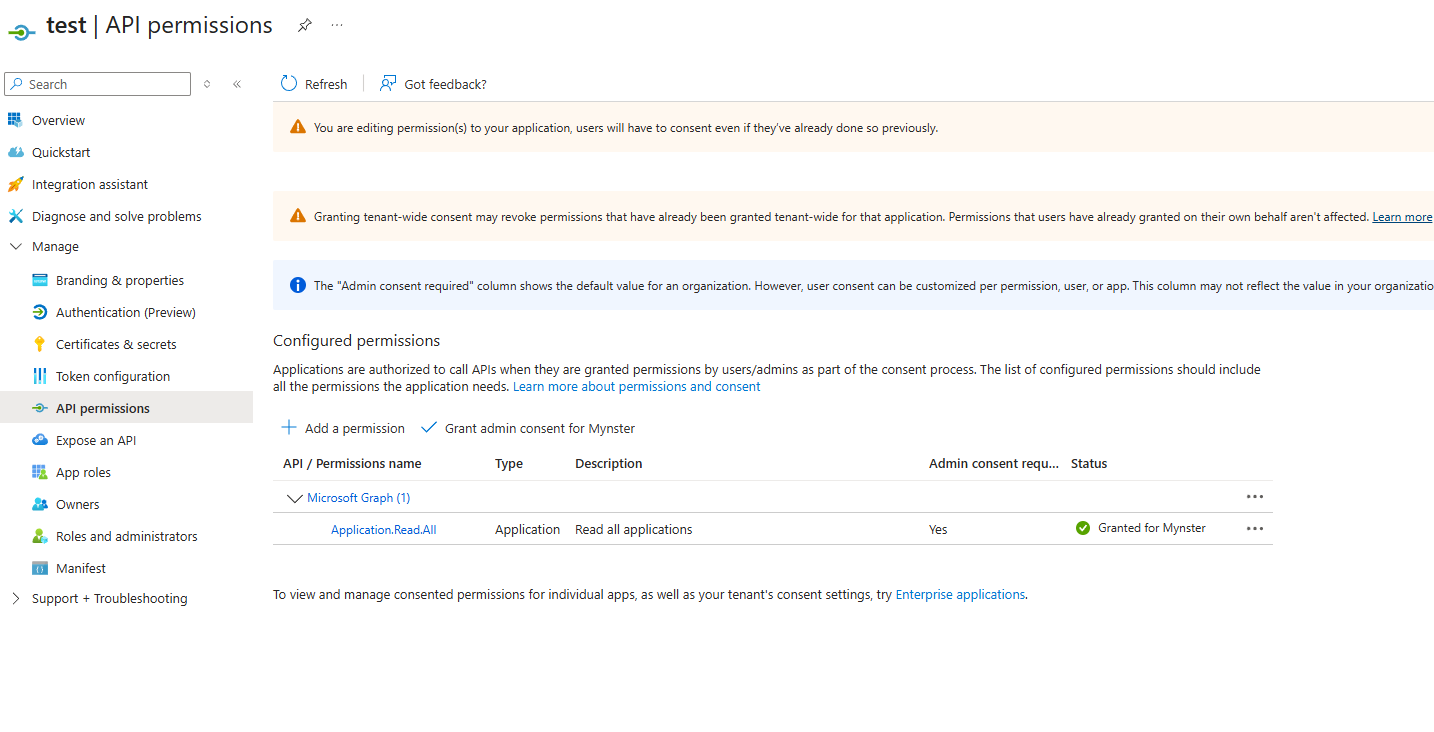
And give the app Application.Read.All permissions
NOTE: if you want to audit Delegated permissions you also need to add “Directory.Read.All” as that is the least privileged role that can send requests to the endpoint “/oauth2permissiongrants”
Once that is done you can use the following code to create a report:
1
2
3
4
5
6
7
8
9
10
11
12
13
14
15
16
17
$tenantId = "Your tenant id"
$clientId = "App id"
$clientSecret = "App secret" | ConvertTo-SecureString -AsPlainText -Force
$daysToQuery = 5 # How long back should this report be this is 5 days
$logAnalyticsWorkspaceId = "Workspace id from the log analytics can be found on the overview of log analytics"

Import-Module LeastPrivilegedMSGraph

Initialize-LPMSLogAnalyticsApi

Connect-EntraService -Service "LogAnalytics", "GraphBeta" -ClientID $clientId -TenantID $tenantId -ClientSecret $clientSecret

$msGraphReport = Get-LPMSAppRoleAssignment
$msGraphReport | Get-LPMSAppActivityData -WorkspaceId $logAnalyticsWorkspaceId -Days $daysToQuery # Defaults to 100k entries per app use -MaxActivityEntries to increase max is 500k entries per app
$msGraphReport | Get-LPMSAppThrottlingData -WorkspaceId $logAnalyticsWorkspaceId -Days $daysToQuery
$msGraphReport | Get-LPMSPermissionAnalysis
Export-LPMSPermissionAnalysisReport -AppData $msGraphReport -OutputPath ".\report.html"
That’s it now you have a report that you can utilize to better limit your applications to only the needed permissions.
How to read the report
The first view you will be met with might be a bit overwhelming but lets get to it!
All apps
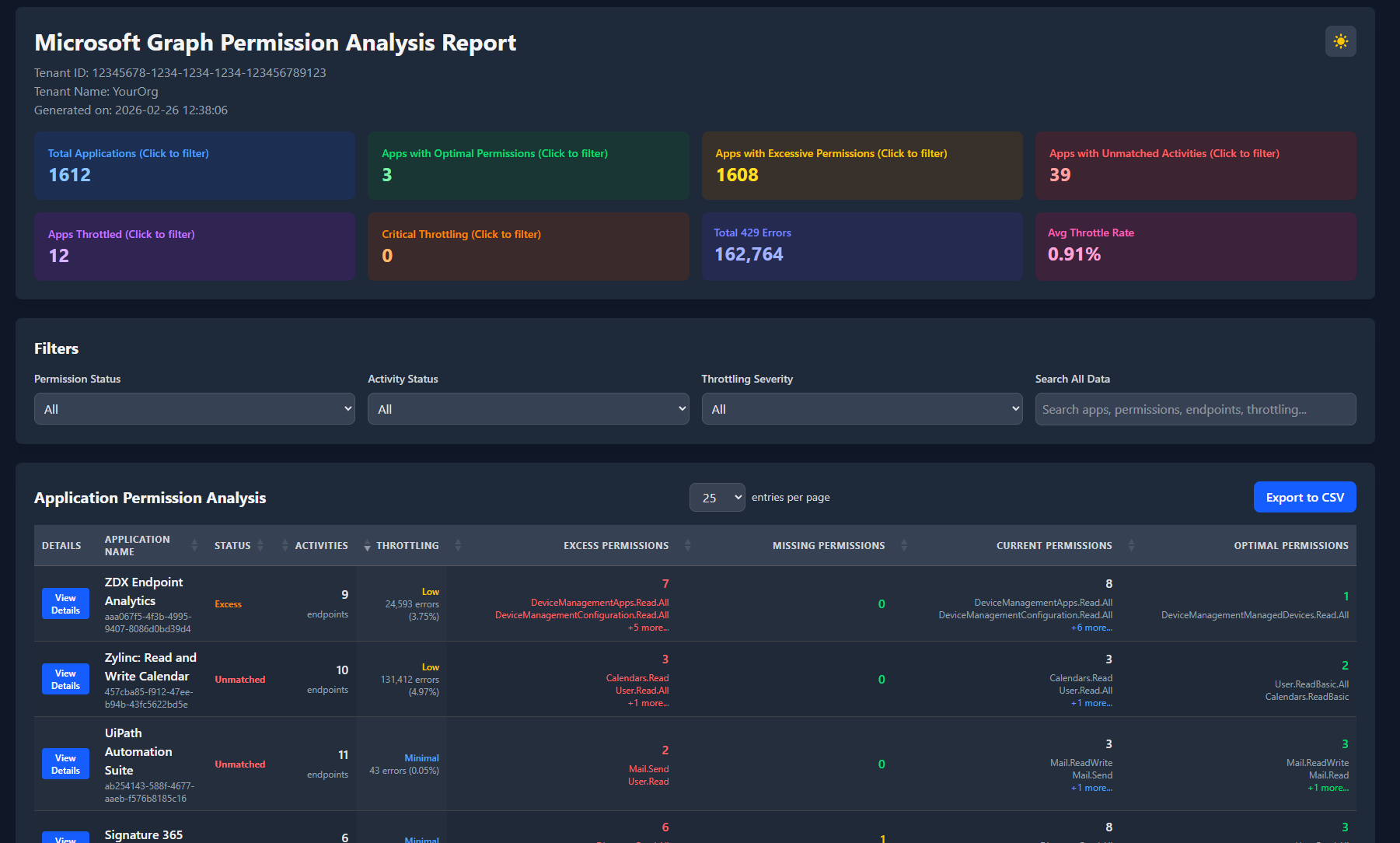
First up the general information you will see the Total apps, the apps in your tenant that already has the most optimal permissions, Apps that has excessive permissions and apps with unmatched activities.
So first up Total apps makes sense right? but you might be thinking wait i have way more than 1612 apps why is it only showing that? Well the report only works for apps with Microsoft Graph permissions assigned either application permissions or delegated permissions.
Optimal permissions
This section will show a list of apps that already is setup correctly compared to which endpoints it has sent requests to.
Excessive Permissions
This will show a list of apps that for one reason or another has permissions that it does not use or is higher privileged than what the app is sending requests to to give an example lets say we have an app that sends GET requests to the /groups endpoint and that the app has Group.ReadWrite.All permissions then this app would be included in the Excessive permissions as the least privileged permissions for the GET /groups endpoint is GroupMember.Read.All so the suggested action would be to remove the Group.ReadWrite.All permission and give the GroupMember.Read.All permission.
Apps with Unmatched Activities
These are apps where i have not been able to map one or more of the requests sent by the app up with a permission hopefully in the future i will be able to match 100% of all activites but for now each app that has unmatched activity will contain a list of the endpoints i have not been able to match up.
Throtling
The second set of blocks is concerning throttling which is more of a subset addition for the actual report it is just something that can be helpful if you ever run into an issue with one or more apps being throttled a lot this will help you identify those and then you can dig futher into it by utilizing the log analytics workspace i will not get more into it for now.
The easy part - No activity
Moving into some of the more fun stuff if you just want a list of apps where you can remove permissions from straight away to get some value from this module set the filter “Activity Status” to “No Activity” This will give you a complete list of all apps that has some Microsoft Graph Permissions but are not using them most of them will properly be the default delegated permission “User.Read” you should be able to remove 90% of these with out having to spend to much time investigating. The others that might be included here will properly also be some SSO applications these can be a bit more tricky as you will properly not see too much activity on these for these i would suggest having Sign-in logs enabled in diagnostic settings so you can see if there are any sign ins to the app. If there is no sign in and there is no Microsoft graph activity i will almost gurantee that the app is no longer in use.
The harder part - Excessive permission
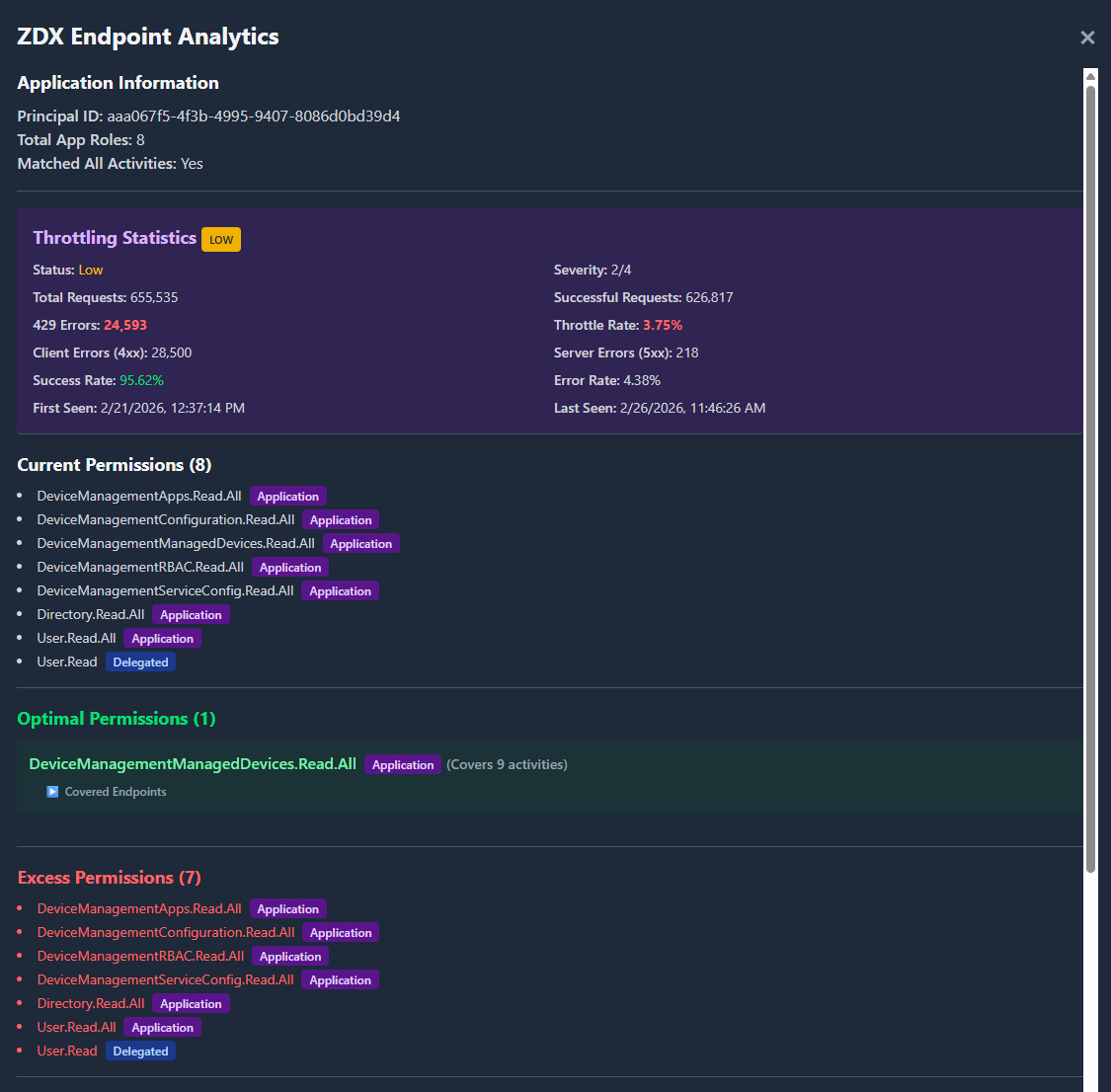
Looking at the 2 below pictures we have the app ZDX Endpoint Analytics First we have some Throttling statistics along with some general information on errors, amount of requests along with when it was first and last seen (Based on how many days you looked back)
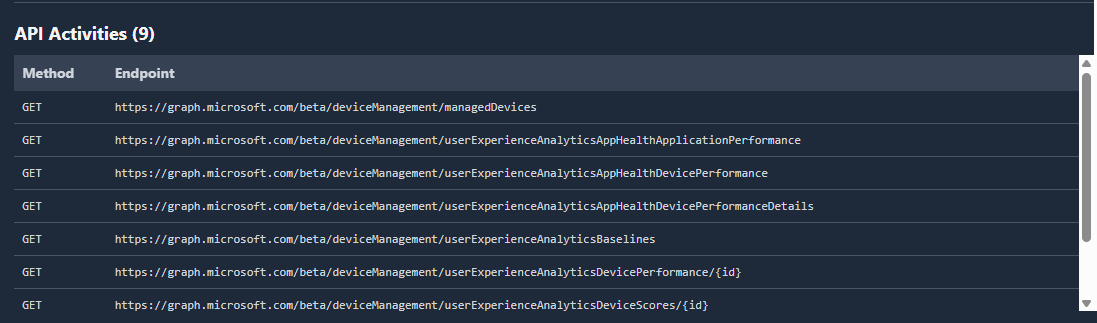
For this app we successfully matched up all activities from the app within the timeframe. We can see what the app has as Current Permissions. Next we get a list of the “Optimal Permissions” this is what the app should have in order to query the endpoints that it is sending requests to below that/those permissions you will also have a drop down available showing which endpoints this permission covers in this instance the least privileged permission for all the endpoints that it is requesting is covered by one permission “DeviceManagementManagedDevices.Read.All” which means the rest of the permissions can be removed as shown in the Excess permissions.
Finally at the bottom we will have a list of the API Activities that the app has sent requests to and what method was used.
Finally if this application had any endpoints that my module was not able to lookup a permission for it would be listed below the API Activites like shown below: 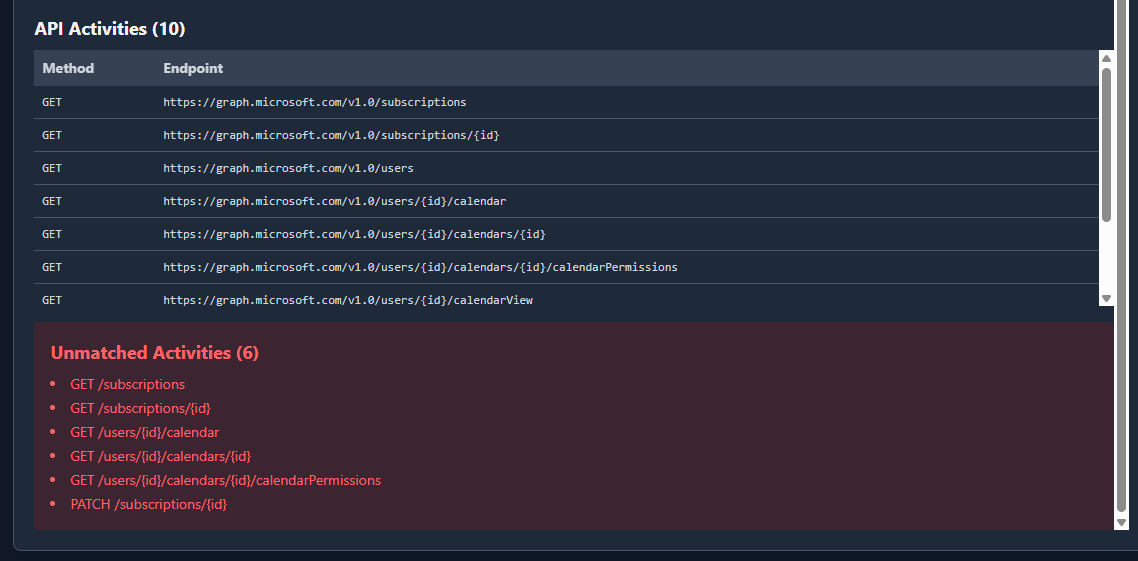
So how much does it cost
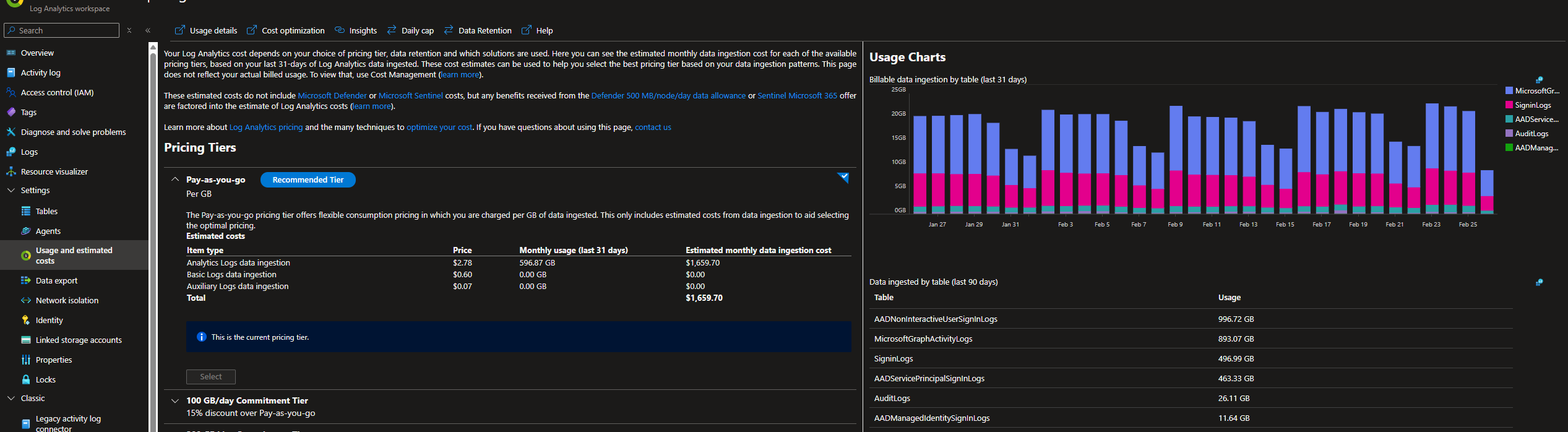
This is for a larger tenant for January and the total cost for the logs we have enabled 1.659,70 $ USD
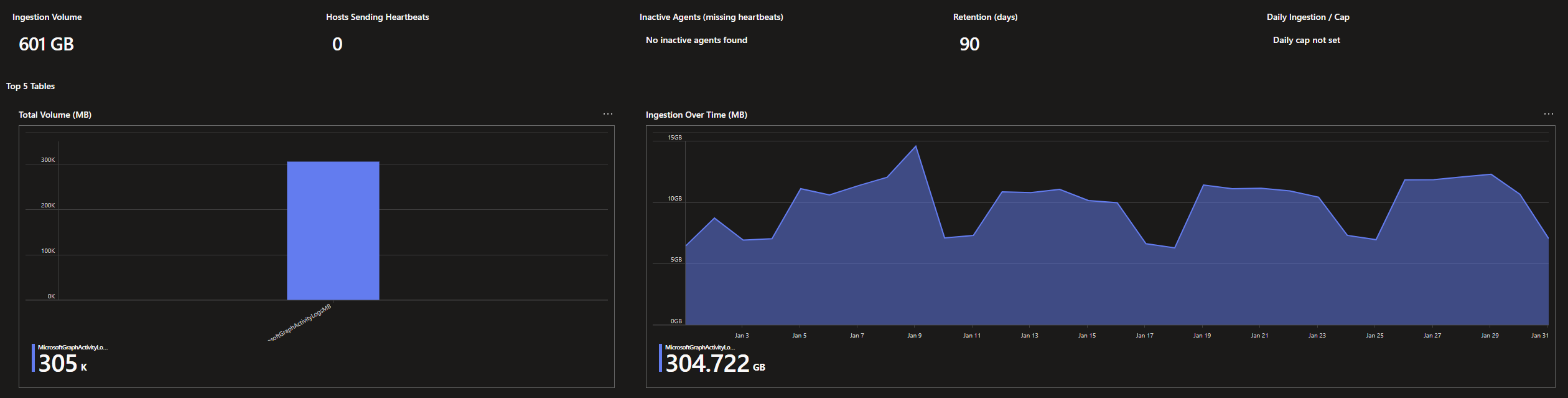
The more realistic cost for just the MSGraph activity logs that we have would be 304.722 * 2.78$ = 847,12716 $ USD
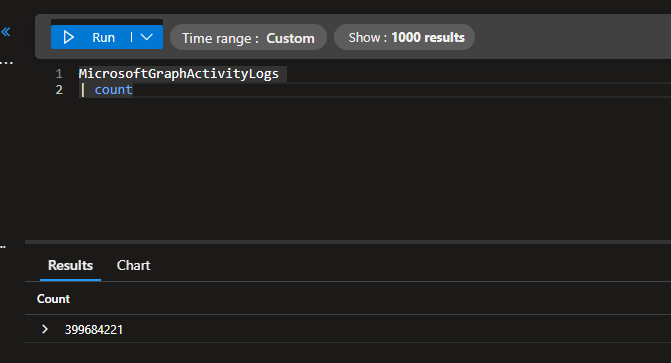
Which in total gives us 399.684.221 entries in my instance so quite a lot of data to pass through!